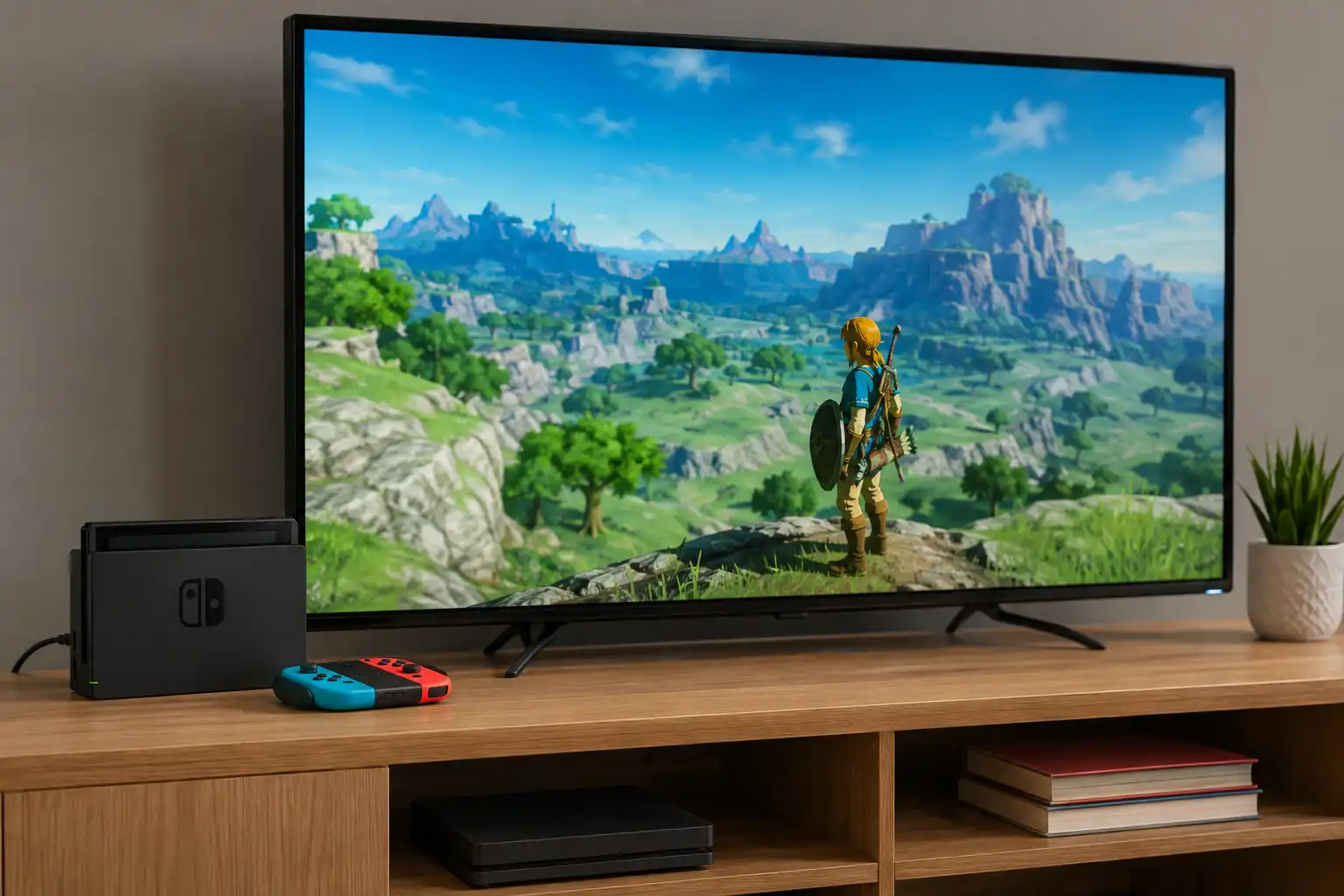
The Nintendo Switch is designed to work as both a handheld console and a home gaming system, making it easy to move from playing on the console screen to a larger television.
For anyone wondering how to connect Nintendo Switch to TV, the process is straightforward when the correct dock, power adapter and HDMI cable are available.
The standard Nintendo Switch and Nintendo Switch OLED Model both support TV mode. The Nintendo Switch Lite is different because it is designed exclusively for handheld play and cannot output games to a television.
This guide explains how to connect a Nintendo Switch to a TV, select the correct HDMI source and troubleshoot common problems when the picture does not appear.
What Do You Need to Connect a Nintendo Switch to a TV?
Before starting, make sure the necessary equipment is available. For a standard Nintendo Switch or Nintendo Switch OLED Model, players normally need:
- Nintendo Switch console
- Nintendo Switch dock
- Nintendo Switch AC adapter
- HDMI cable
- Television or monitor with an HDMI input
- Joy-Con controllers or another compatible controller
Nintendo’s standard TV setup uses the dock to send the console’s video and audio signal to the television. The dock also provides power to the Switch while it is being used in TV mode.
How Do You Connect a Nintendo Switch to a TV?
Connecting the console should only take a few minutes. Follow these steps in order to avoid common HDMI and power problems.
Step 1: Open the Nintendo Switch Dock
Place the dock close enough to the TV and a wall socket for the cables to reach comfortably.
Open the cover on the back of the Nintendo Switch dock. The main connections required for TV mode are labelled AC ADAPTER and HDMI OUT.
Step 2: Connect the AC Adapter
Take the USB-C end of the Nintendo Switch AC adapter and plug it into the AC ADAPTER port on the dock.
Connect the other end directly to a suitable wall socket.
Using the proper power supply is important because the dock requires sufficient power before it can send the Switch’s video signal to the television.
Step 3: Connect the HDMI Cable
Plug one end of an HDMI cable into the HDMI OUT port on the Nintendo Switch dock.
Connect the other end to an available HDMI input on the television, such as:
- HDMI 1
- HDMI 2
- HDMI 3
- HDMI ARC/eARC
Remember which HDMI port has been used because the same input needs to be selected using the TV remote.
Step 4: Close the Dock Cover
Once the power and HDMI cables are connected correctly, carefully route the cables through the opening in the dock and close its rear cover.
Keeping the cables organised can also reduce unnecessary pressure on the HDMI and USB-C connections.
Step 5: Remove the Joy-Con Controllers
Remove the Joy-Con controllers from both sides of the Switch if they are going to be used wirelessly while playing on the TV.
Joy-Con controllers that have never previously been connected to the console may need to be attached to it first so that they can be paired correctly.
Step 6: Place the Nintendo Switch in the Dock
Carefully insert the Nintendo Switch into the dock with the console screen facing the same direction as the front of the dock.
The USB-C connector at the bottom of the console should align with the connector inside the dock.
Once properly docked, the Switch’s built-in display should turn off as the console changes to TV mode.
Step 7: Select the Correct HDMI Input
Turn on the television and use the remote to select the HDMI input where the Nintendo Switch dock is connected.
For example, if the cable was connected to HDMI 2, change the TV source to HDMI 2.
The Nintendo Switch HOME Menu should then appear on the television.
Can a Nintendo Switch Connect to a TV Without a Dock?
The standard Nintendo Switch TV setup is designed around the Nintendo Switch dock. Simply connecting a basic USB-C-to-HDMI cable directly between the console and television is not the normal supported method for activating TV mode.
Third-party docks and adapters are available, but compatibility can vary considerably. A reliable dock and suitable power adapter are preferable, particularly when troubleshooting display or charging problems.
For normal use, the original Nintendo dock remains the simplest approach.
Why Is My Nintendo Switch Not Showing on the TV?
If the Switch is in the dock but nothing appears on the television, there are several things worth checking before assuming the console is faulty.
Start with the HDMI input. TVs with several HDMI sockets can easily be set to the wrong source.
The next step is to check that both cables are firmly connected. The dock needs power as well as an HDMI connection.
A useful troubleshooting sequence is:
- Remove the Switch from the dock.
- Turn off the television.
- Disconnect the dock’s HDMI and power cables.
- Leave the power adapter disconnected briefly.
- Reconnect the Nintendo Switch AC adapter to the dock.
- Connect the HDMI cable directly between the dock and TV.
- Turn on the television.
- Select the correct HDMI input.
- Insert the Switch back into the dock.
Players should also try a different HDMI socket or HDMI cable if the screen remains blank.
Nintendo advises using a suitable Nintendo Switch AC adapter when troubleshooting TV-mode connection problems.
Why Does the Switch Screen Turn Black When Docked?
A black console screen after placing the Switch into its dock is normally expected.
When TV mode activates successfully, the console stops displaying the game on its built-in screen and outputs the image to the connected television instead.
Therefore, a black Switch screen does not automatically indicate a fault.
However, if both the Switch display and television remain blank, the HDMI connection, TV input, dock and power supply should be checked.
How Do You Change Nintendo Switch TV Settings?
Several display options can be adjusted from the console itself.
Go to:
System Settings > TV Settings
Depending on the console and connected display, available options can include TV resolution, RGB range, screen size and other television-related settings.
In most cases, the automatic settings work well. Changing these options can nevertheless help when troubleshooting unusual picture quality, resolution or display compatibility issues.
Can Nintendo Switch Lite Connect to a TV?
No. Nintendo Switch Lite does not support TV mode.
Unlike the standard Nintendo Switch and Nintendo Switch OLED Model, the Lite is designed specifically as a handheld console and does not support video output to a television through a Nintendo Switch dock.
Buying a dock or USB-C-to-HDMI adapter will not add normal TV-mode functionality to the Switch Lite.
Anyone who regularly wants to move between handheld and television gaming needs a Nintendo Switch model that supports TV mode.
Does Nintendo Switch OLED Connect to a TV?
Yes. The Nintendo Switch OLED Model supports television play.
The setup is largely the same as with the original Nintendo Switch:
- Connect the dock to power.
- Connect the HDMI cable.
- Connect HDMI to the television.
- Insert the OLED console into its dock.
- Select the appropriate HDMI source.
The OLED screen mainly improves the experience when the console is being played in handheld or tabletop mode. When docked, gameplay appears on the connected television.
What Should You Do if the Switch Dock Is Not Working?
A faulty connection does not necessarily mean the dock itself has failed.
Before replacing anything, check:
- Whether the AC adapter is working
- Whether the HDMI cable works with another device
- Whether another HDMI input works
- Whether the console is fully seated in the dock
- Whether the USB-C connector is obstructed
- Whether the television is on the correct source
- Whether the Switch has been restarted
It is also worth checking the console for system updates.
If storage rather than the TV connection becomes the next problem, players can also learn how to delete Nintendo Switch games and free up space for new downloads.
Can You Connect a Nintendo Switch to a Monitor?
Yes. A compatible monitor with an HDMI input can normally be used instead of a television.
The connection process is essentially identical:
Nintendo Switch → Dock → HDMI Cable → Monitor
One important difference is audio. Many computer monitors do not include built-in speakers. If the monitor cannot output sound, a separate audio solution may be necessary.
Can You Use the Nintendo Switch While It Is Charging on the TV?
Yes. When the Nintendo Switch is placed in a powered dock, the console can charge while being used in TV mode.
This is one of the benefits of the docked setup. Players can enjoy games on a larger display without relying entirely on the console’s remaining battery level.
The charging rate can vary depending on what the console is doing, but keeping the official power adapter connected ensures the dock receives the power required for normal operation.
Is Connecting Nintendo Switch 2 to a TV Different?
Nintendo Switch 2 also supports TV mode, but its hardware requirements differ from those of the original Switch.
Nintendo specifies a Nintendo Switch 2 dock, a suitable Nintendo Switch 2 AC adapter and an Ultra High Speed HDMI cable for its standard TV setup.
The original Nintendo Switch AC adapter does not provide the required power for using the Switch 2 dock in TV mode, so accessories should not automatically be treated as interchangeable between generations.
Conclusion
Learning how to connect Nintendo Switch to TV is straightforward once the dock is correctly connected to power and HDMI. Plug the AC adapter and HDMI cable into the dock, connect HDMI to the television, place the Switch in the dock and select the matching HDMI input.
The original Nintendo Switch and Nintendo Switch OLED support TV mode, while the Nintendo Switch Lite does not. If no picture appears, checking the power supply, HDMI cable, TV source and dock connections will resolve many common setup problems.
FAQs
Do I Need Wi-Fi to Connect a Nintendo Switch to a TV?
No. Wi-Fi is not required for TV mode itself, although an internet connection may be needed for online games, downloads and updates.
Why Is There No Sound From My Nintendo Switch on the TV?
Check the TV volume, HDMI connection and audio settings. Trying another HDMI port or cable can also help identify the problem.
Can I Leave My Nintendo Switch in the Dock All the Time?
Yes. The Switch is designed to remain in its dock, and its charging system manages the battery once it reaches full charge.
Does Any HDMI Cable Work With Nintendo Switch?
Most standard HDMI cables should work with the original Nintendo Switch, although using the cable supplied with the console is recommended for reliable performance.
Why Does My Nintendo Switch Keep Disconnecting From the TV?
Loose HDMI connections, power issues or a problem with the dock can cause intermittent display loss. Reconnecting the cables and testing another HDMI port is a good first step.