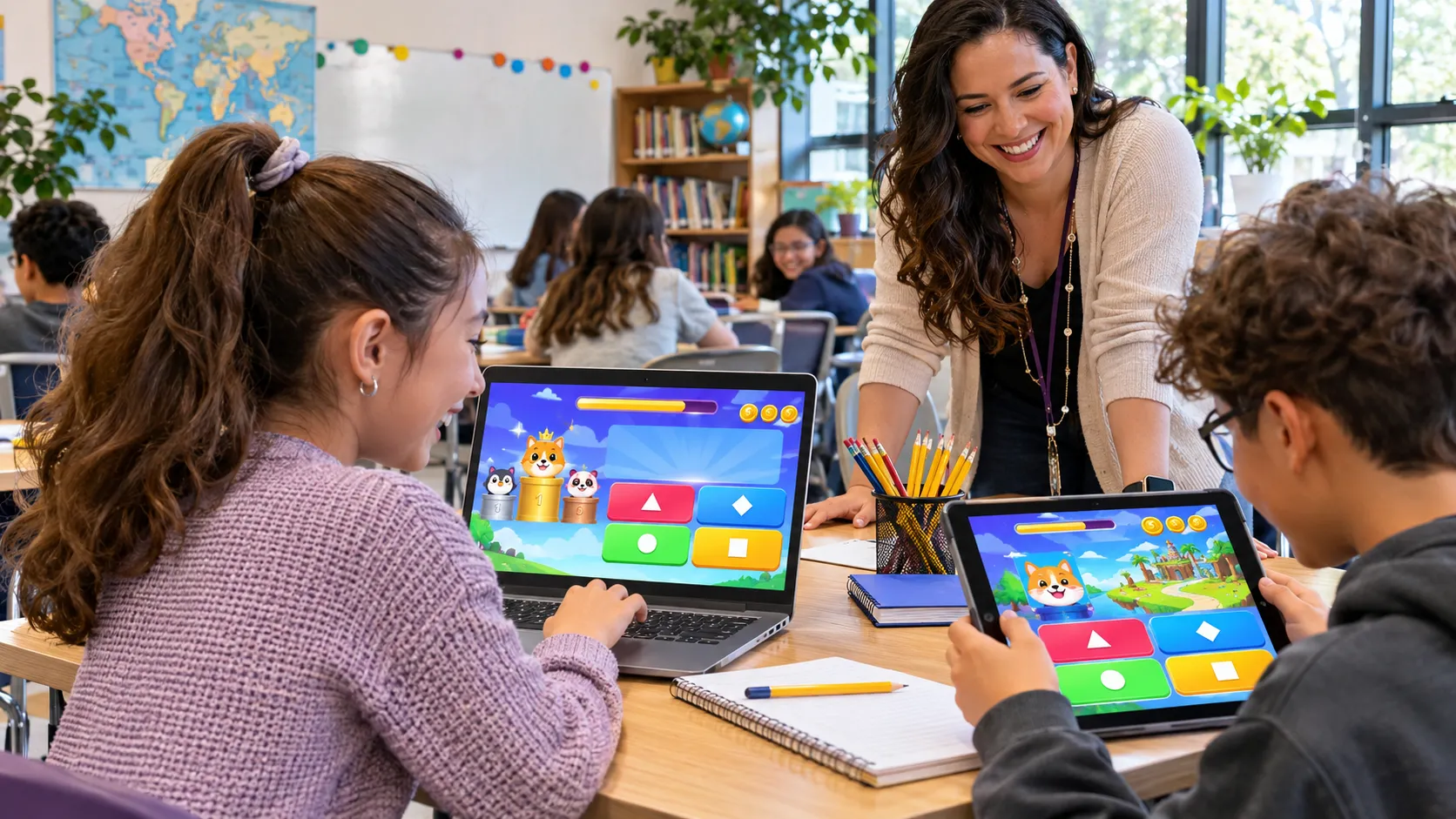
Blooket is an interactive educational gaming platform that combines traditional quizzes with competitive game mechanics, colourful characters and strategic challenges. Whether you want to participate in a classroom quiz, compete with friends or practise a subject independently, learning how to play Blooket is straightforward once you understand its different gameplay options.
Unlike ordinary online quizzes, Blooket turns correct answers into progress within games. Depending on the selected mode, players can collect gold, race against opponents, build defences or earn points while answering educational questions.
Students can join live sessions without creating an account, while registered users can access additional features such as personal collections and independent practice.
This guide explains how to join a Blooket game, host a session, play solo, complete homework, understand game modes and improve your performance.
What Is Blooket and How Does It Work?
Blooket is a browser-based learning platform where questions are presented through different interactive game modes.
A teacher, parent or another eligible host selects a question set covering a subject such as mathematics, science, geography, English or general knowledge. Players then answer those questions while participating in a game.
The questions provide the educational content, while the selected game mode determines how players progress.
For example, two players might answer the same mathematics questions but experience completely different gameplay in Classic and Gold Quest.
| Feature | How It Works |
| Game type | Educational quiz-based gaming |
| Official platform | Blooket |
| Devices | Computers, laptops, tablets and smartphones |
| Account required | Not for joining live games |
| Multiplayer | Available through hosted games |
| Solo gameplay | Available for independent practice |
| Game joining | Game ID, QR code or invitation link |
| Main objective | Answer questions and complete the selected mode’s objectives |
| Cost | Free basic access with optional paid features |
Blooket is particularly useful for classroom revision because it combines knowledge recall with immediate feedback and game progression.
For students who enjoy interactive learning, traditional activities such as Heads Down Thumbs Up provide another way to incorporate participation, concentration and friendly competition into classroom sessions.
How to Play Blooket Step by Step as a Student?
The easiest way to start playing Blooket is to join a live game hosted by a teacher or another player.
You need an internet-connected device and a valid invitation from the host.
Step 1: Open the Official Blooket Website
Open Chrome, Edge, Safari, Firefox or another compatible browser.
Visit the official Blooket game joining page:
play.blooket.com
This page allows participants to join an active session using the Game ID provided by the host.
You do not need to install separate gaming software to join through a supported browser.
If your teacher shares a direct invitation link, opening that link may take you directly into the joining process.
Step 2: Enter the Blooket Game Code
When a teacher hosts a live Blooket session, the platform generates a unique Game ID.
The host normally displays this code on a classroom screen or shares it directly with participants.
To join:
- Find the Game ID provided by your teacher.
- Enter the complete code into the joining field.
- Check that the numbers have been entered correctly.
- Submit the code to continue.
The code identifies the particular game session you want to join.
Important: Blooket Game IDs are associated with hosted sessions. An old code from a completed game may no longer work.
You can also join through a QR code or a shared invitation link if the host provides one.
Step 3: Choose Your Blooket Nickname
After entering the game, you may be asked to provide a nickname.
This is the name that other participants and the host will see during gameplay.
Choose something appropriate and recognisable, especially when participating in a classroom activity.
Some hosts enable randomly generated names. When this option is active, Blooket may assign your display name automatically.
Avoid entering personal information that is unnecessary for participating in the game.
Step 4: Select Your Blook Character
A Blook is a character or avatar used to represent a player within Blooket.
After joining, you can choose from the Blooks available to you.
Depending on your account and collection, different character options may appear.
Blooks are primarily a visual part of the gaming experience. Choosing a particular character does not automatically guarantee better answers or a higher score.
Once you have selected your character, you will enter the waiting area.
Step 5: Wait in the Game Lobby
The lobby is the waiting area where participants gather before the host begins the session.
You can usually see that you have successfully joined and wait for the game to start.
The host controls when the live game begins.
While waiting, check that:
- Your nickname is correct.
- You have joined the intended session.
- Your browser remains connected.
- You understand the game mode selected by the host.
There is no need to repeatedly refresh the page while waiting.
Step 6: Answer Questions During Gameplay
Once the host starts the session, Blooket displays questions from the selected question set.
Read each question and choose the answer you believe is correct.
In a basic quiz-style game, the process involves reading the question, selecting an answer and continuing to the next challenge.
However, Blooket games are not limited to simple question-and-answer screens.
Some modes introduce extra decisions after correct answers, including collecting resources, selecting rewards or interacting with other players.
For example:
Classic: Players compete through quiz performance, with correct answers and speed contributing to their results.
Gold Quest: Correct answers create opportunities to obtain gold, while game mechanics can change how much gold a player holds.
Tower Defense: Players answer questions to support defensive strategies against approaching enemies.
The key is to understand that answering questions correctly supports your progress, but the exact winning conditions depend on the chosen game mode.
Step 7: Complete the Game and Check Your Results
A Blooket game finishes when its selected ending condition is reached.
This might involve a time limit, a particular target or another mode-specific objective.
At the end, Blooket displays results appropriate to the game.
You may see final rankings, scores or other performance information.
The highest quiz accuracy does not necessarily produce the winner in every mode because some modes include additional strategy, chance or resource-management mechanics.
After the game, review the questions you found difficult so your next session improves both your knowledge and your gameplay.
How Can Teachers Host a Blooket Game?
Hosting allows teachers and other eligible account holders to choose educational questions, select a game mode and invite participants into a shared session.
The process is slightly different from joining a game because the host controls the setup and session settings.
Step 1: Create or Log In to a Blooket Account
Visit Blooket and sign in with an eligible account.
New users can create an account using the available registration options.
Account registration is subject to Blooket’s age requirements. Its official student guide states that users must be over 13 in the United States or at least 16 outside the United States to create an account.
For UK users, this means the minimum account age is 16. Younger students can still join live games as guests without registering.
Step 2: Select a Question Set
After signing in, find the question set you want to use.
Blooket provides a Discover area containing publicly available sets created by other users.
Search for relevant educational topics such as:
- Multiplication and division
- English vocabulary
- World geography
- Biology and chemistry
- Historical events
- General knowledge
Select a question set that matches your students’ learning level.
Review the questions and correct answers before hosting, particularly when using community-created material.
Alternatively, create your own question set if you require specific learning objectives.
Step 3: Choose the Host Option
Open the selected question set and click Host.
Blooket will display the game modes currently available for live sessions.
Each mode has its own rules, objectives and gameplay structure.
For a beginner-friendly classroom session, Classic is a practical starting point because its quiz-based format is easier to explain than modes involving several strategic systems.
Step 4: Configure the Game Settings
After selecting a mode, review the available settings.
Depending on the mode, these may include:
| Setting | Purpose |
| Game duration | Determines how long the session runs |
| Target score or goal | Sets a possible completion condition |
| Random names | Assigns generated names to participants |
| Late joining | Controls whether players can enter after the start |
| Question order | Changes how questions are presented |
| Answer feedback | Controls selected feedback behaviour where supported |
Not every setting appears in every game mode.
For an introductory session, simpler settings generally help players concentrate on the questions rather than unfamiliar mechanics.
Step 5: Generate and Share the Game ID
When the settings are ready, select the option to host the game.
Blooket generates the joining details for the session.
Share the Game ID, QR code or invitation link with your students.
A Game ID is convenient for classroom projection, while a direct link may be easier for remote participants.
Step 6: Start the Game
Once participants have entered the lobby, check that everyone expected has joined.
Explain the basic objectives and any unusual gameplay mechanics.
When the group is ready, select Start.
Players can then answer questions and complete the game on their individual devices.
Step 7: Review Student Performance
At the end of the session, review the results and any reporting information available through your account.
Focus on identifying questions students frequently answered incorrectly rather than relying exclusively on final leaderboard rankings.
For example, if several students struggle with fractions, that could indicate the need for another revision activity.
The most useful classroom outcome is identifying which concepts students understand and which require additional practice.
How to Play Blooket Without a Game Code?
You do not always need a game code to play Blooket.
If you want to practise independently, you can use its Solo gameplay feature instead of joining a hosted session.
Solo gameplay is particularly useful for revision, practising difficult questions or learning how a game mode works.
Follow these steps:
- Visit Blooket and sign in to your account as required.
- Open the Discover section.
- Search for a topic or subject.
- Select a suitable question set.
- Click Solo.
- Choose an available solo-compatible game mode.
- Select Play to begin.
You can then answer questions and progress through the game independently.
The main difference is that there is no live classroom host controlling the session.
Solo play also allows learners to repeat topics they find difficult without waiting for a group activity.
For example, a student preparing for a mathematics test could choose a fractions question set and use a compatible solo game mode for repeated practice.
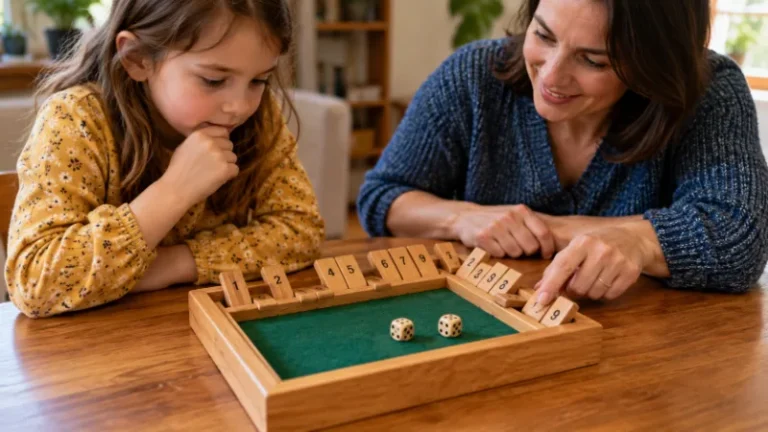
Students interested in other learning-focused challenges may also enjoy Shut the Box, a number-based game involving arithmetic, probability and strategic decisions.
How Do You Complete Blooket Homework?
Blooket homework is designed for self-paced learning outside a live classroom session.
Instead of requiring everyone to participate simultaneously, the teacher assigns a task that students complete independently.
Step 1: Open the Homework Link
Your teacher shares an assignment link or QR code.
Open the link using a compatible browser or scan the QR code.
This takes you to the assigned activity.
Step 2: Enter Your Name
Follow the instructions shown for the assignment.
You may be asked to enter a nickname or sign in.
Use an appropriate name that allows your teacher to identify your work when necessary.
Step 3: Select an Available Game Mode
Depending on how the homework has been configured, you may be able to select from compatible game modes.
Choose one that you understand and enjoy.
Step 4: Answer the Questions
Begin playing the assigned question set.
Some homework assignments use a Correct Goal, requiring students to achieve a specified number of correct answers.
The objective is to complete the learning requirement, not necessarily finish above another player on a leaderboard.
Step 5: Check Your Completion Status
Continue until the assignment indicates that you have reached the required objective.
If your teacher has specified a deadline, complete the assignment before it expires.
Do not assume that simply opening a homework link means the assignment has been completed.
What Are the Different Blooket Game Modes?
One reason Blooket is different from a conventional quiz is that the same questions can support multiple gaming experiences.
Each mode changes the balance between quiz accuracy, speed, strategy and chance.
| Game Mode | Gameplay Style | Main Objective | Suitable For |
| Classic | Competitive quiz | Earn points through quiz performance | Beginners |
| Gold Quest | Reward and resource competition | Collect and retain gold | Group competition |
| Racing | Quiz-based race | Advance towards the finish | Fast-paced sessions |
| Battle Royale | Competitive encounters | Defeat opponents through correct answers | Competitive players |
| Factory | Resource and production management | Build productive systems | Strategy enthusiasts |
| Tower Defense | Defence strategy | Build defences and survive | Strategic players |
| Café | Management simulation | Serve customers through gameplay | Independent practice |
| Fishing Frenzy | Fishing-themed competition | Earn progress through catches and questions | Casual players |
Note: Available modes can change, and some may be restricted to live, solo or homework play. Certain features may also require paid access.
Which Blooket Mode Is Best for Beginners?
Classic is usually the easiest place to begin because players can concentrate on answering questions without learning complicated resource-management systems.
Gold Quest is suitable once players understand the basics and want more unpredictable competition.
For students who prefer planning, Tower Defense and Factory introduce additional strategic decisions.
Different players may prefer different modes, so trying several options is often more useful than assuming one will be best for everyone.
How Can You Create Your Own Blooket Question Set?
Creating a question set allows you to design a game around a particular subject, lesson or revision objective.
Start by signing in to an account with question-set creation access.
Then follow these steps:
- Open the question-set creation area.
- Select the option to create a new set.
- Enter a clear title and relevant details.
- Add your first question.
- Provide the answer options required by the question type.
- Mark the correct answer or answers.
- Continue adding questions.
- Review your content and save the set.
Once saved, you can open the set and choose the available Host, Solo or homework options.
For example, a geography quiz might contain questions about European capitals, continents, rivers and countries.
A good beginner set should use clear wording, avoid ambiguous answers and maintain a consistent difficulty level.
Teachers can also incorporate vocabulary-based activities into revision. Bananagrams offers a different approach to word recognition and spelling, making it a useful complement to digital English quizzes.
How Does Blooket Scoring Work?
There is no single scoring formula that applies identically across every Blooket mode.
The scoring system depends on the game selected.
In Classic, correct answers and response speed influence competitive performance.
In Gold Quest, answering correctly creates opportunities to gain gold, but outcomes also depend on the available reward mechanics.
In strategy-based modes, the player must make effective decisions with the resources or opportunities earned.
This means players should consider two separate elements:
Question accuracy: How often do you choose the correct answer?
Game performance: How effectively do you use the mechanics of the selected mode?
A player who consistently answers correctly has a stronger foundation, but winning can still require good strategic decisions.
For educational purposes, understanding missed answers is often more valuable than finishing first.
How Can You Improve Your Chances of Winning Blooket?
Improving your Blooket performance involves understanding both the questions and the gameplay mechanics.
The following approaches are particularly useful for beginners.
Read Questions Before Selecting an Answer
Fast responses can be helpful in certain modes, but incorrect answers may interrupt your progress or reduce your competitive advantage.
Read the full question, identify the relevant information and then choose your answer.
Practise Difficult Topics in Solo Mode
If you regularly struggle with a particular subject, select a relevant question set and practise independently.
Repeated practice can help you recognise common question structures and identify knowledge gaps.
Understand the Selected Game Mode
Learn the objective before the session begins.
In Gold Quest, understanding the gold-related mechanics matters. In Tower Defense, the decisions you make about defensive placement can influence your progress.
Avoid applying the same strategy to every mode.
Use Resources Carefully
Some modes involve choosing how to spend resources or when to make particular moves.
Consider the long-term objective rather than always selecting the most immediately attractive option.
Review Your Mistakes
After completing a game, identify questions you answered incorrectly and revise those topics.
This improves the educational value of playing and can make future sessions easier.
For additional interactive entertainment, Google Doodle games offer browser-based challenges involving memory, puzzles, timing and problem-solving.
Why Is Blooket Not Working and How Can You Fix It?
Occasionally, players encounter problems when joining or participating in a session.
Many common issues relate to expired codes, incorrect links, connectivity or browser restrictions.
| Problem | Possible Cause | Recommended Solution |
| Invalid Game ID | Incorrect or outdated code | Request the current code from the host |
| Cannot join game | Session closed or joining restricted | Ask the host to check the session |
| Game not loading | Browser or connection problem | Refresh the page and check connectivity |
| Questions freeze | Temporary connection interruption | Reconnect and follow the host’s instructions |
| Unable to sign in | Incorrect login information | Use the official account recovery process |
| Features unavailable | Account or mode restrictions | Check whether the feature requires a different access level |
| School device blocked | School network restrictions | Contact the teacher or school IT administrator |
What Should You Do If Your Blooket Code Does Not Work?
First, confirm that the Game ID matches the one displayed by the host.
Check that you have not entered extra spaces or incorrect numbers.
Next, ask whether the session is still active.
If the host has ended the game, you will normally need a new invitation for another session.
Why Are You Stuck in the Waiting Lobby?
Remaining in the lobby does not necessarily indicate a technical problem.
It usually means the host has not yet started the game.
Wait for the host’s instructions rather than repeatedly reopening the joining page.
If other participants have started playing and you remain stuck, notify the host so they can check the session.
Can You Play Blooket on a Mobile Phone?
Yes, Blooket can be accessed through a compatible mobile browser.
The general process is similar to playing on a computer.
Open the joining page, enter the Game ID or follow the invitation link, choose your nickname and participate.
Some game modes may be easier to navigate on a larger screen, particularly those with more detailed strategic interfaces.
Is Blooket Free to Play?
Blooket provides free access to its basic educational gaming features.
Students can join live games without purchasing a subscription or registering an account.
Users with eligible accounts can access features such as question sets and supported hosting or solo options.
Blooket also provides optional paid subscriptions offering additional capabilities.
The availability of premium modes, advanced reporting and other features depends on the current subscription offering.
For most beginners, the free features are enough to learn the platform and participate in classroom games.
Can You Play Blooket With Friends?
Yes. Blooket supports multiplayer sessions in which friends can participate together.
One eligible participant needs to host the session.
The other players can join using the generated Game ID, QR code or invitation link.
Participants do not necessarily need to be in the same physical location, provided they have internet access and can join the hosted game.
For a small group, a straightforward quiz mode is usually easier to organise than one requiring detailed strategy.
Teachers and groups interested in offline alternatives can also try Articulate, which combines teams, clues, categories and quick thinking.
What Are the Main Benefits of Playing Blooket?
Blooket combines educational activities with interactive entertainment, which can make revision feel less repetitive.
Its main potential benefits include:
- Active recall: Players repeatedly retrieve information when answering questions.
- Immediate feedback: Question responses help learners recognise correct and incorrect answers.
- Different learning formats: Multiple modes provide varied ways to practise the same topic.
- Self-paced revision: Solo and homework activities allow learners to practise independently.
- Group participation: Hosted games bring multiple students into a shared activity.
- Flexible subject coverage: Question sets can cover academic subjects and general knowledge.
However, game scores should not be treated as a direct measurement of academic ability.
Some modes include random events and strategic mechanics that influence results independently of question accuracy.
Teachers should therefore use Blooket as a supplementary learning activity rather than relying on leaderboards alone to assess understanding.
Frequently Asked Questions
How Do You Play Blooket for the First Time?
Open the official joining page, enter the Game ID shared by your teacher, select a nickname and choose your Blook. Wait for the host to begin, then answer the questions displayed during the game.
Can you play Blooket without signing up?
Yes. Students can join live hosted games without creating an account. However, independent gameplay and account-related features may require signing in.
How Do You Join Blooket Without a Code?
You can use a direct invitation link or scan the QR code shared by the host. Alternatively, eligible users can select a question set and play independently in Solo mode.
Can You Play Blooket Alone?
Yes. Blooket supports solo gameplay through compatible modes. Find a question set, select Solo and choose a mode to practise without other participants.
How Do You Win a Blooket Game?
Winning depends on the selected mode. Some reward quiz speed and accuracy, while others require collecting resources, completing strategic objectives or outperforming competitors.
Is Blooket Suitable for Classroom Learning?
Yes. Teachers can use Blooket for revision, knowledge checks and interactive classroom activities. It works particularly well as a supplementary activity alongside conventional teaching.
Do Blooket Game Codes Expire?
Game codes are associated with particular hosted sessions and may stop working after those sessions end. Ask the host for a new code if an earlier invitation is no longer valid.