Last Updated On – 10-09-2026
Steam Remote Play allows gamers to run a game on one computer and play it from another supported device through real-time streaming.
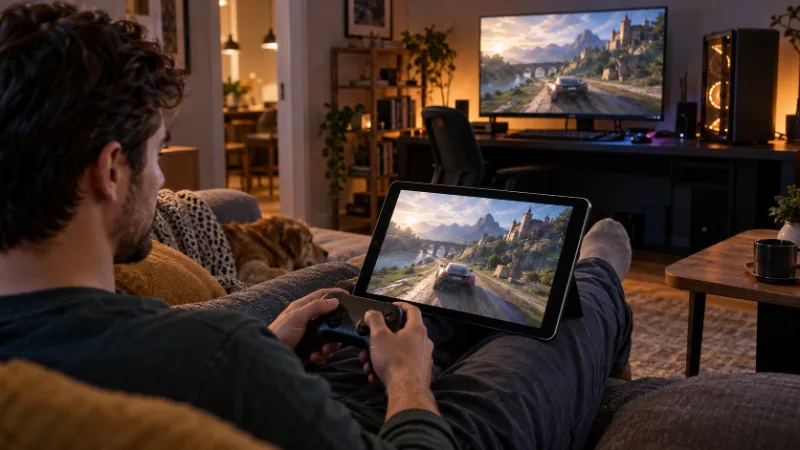
Instead of installing and processing the game on the device in your hands, the main gaming PC does the heavy work while Steam sends the video and audio to the second device.
Your keyboard, mouse or controller inputs travel in the opposite direction. When you press a button on the remote device, that input is sent back to the host PC, where the game is actually running.
This makes it possible to play demanding PC games on a lower-powered laptop, phone, tablet, television or another computer without moving the gaming PC itself.
Steam Remote Play also includes Remote Play Together for online local multiplayer and Steam Link support for compatible mobile, TV and VR devices.
What Is Steam Remote Play?
Steam Remote Play is Valve’s game-streaming technology built around Steam and the Steam Link ecosystem.
There are three main ways gamers can use it:
| Remote Play Mode | What It Does | Best For |
| Remote Play Anywhere | Streams your own Steam games to another device | Playing away from the gaming PC |
| Remote Play Together | Lets friends remotely join local multiplayer games | Couch co-op over the internet |
| Steam Link VR | Streams supported PC VR content to compatible headsets | Wireless PC VR gaming |
In every case, the host computer remains responsible for actually running the game.
The remote device mainly displays the stream and sends your controls back to the host.
Steam itself remains operated by Valve. Gamers interested in the wider platform can also read whether Xbox bought Steam and how the two gaming ecosystems differ.
How Does Steam Remote Play Work Technically?
The easiest way to understand Steam Remote Play is to think of it as a private live stream that you can control.
Suppose a powerful gaming PC is upstairs while you want to play from a laptop downstairs.
The process works roughly like this:
- Game Runs On Host PC: Your gaming computer launches and processes the game normally.
- Steam Captures Gameplay: Steam captures the game’s video and audio output.
- Video Is Encoded: The host PC compresses the gameplay into a stream that can travel efficiently across the network.
- Stream Reaches Client: Your laptop, phone, tablet or other supported device receives and displays it.
- Controls Return To Host: Controller, keyboard and mouse commands are transmitted back to the gaming PC.
- Game Responds: The host processes those commands and sends the updated image back.
This entire cycle happens continuously.
The faster the network and the lower the latency, the more Remote Play feels like playing directly on the gaming PC.
Does Steam Remote Play Run the Game on the Second Device?
No.
The game normally runs on the host computer, not the device being used to watch and control it.
For example, imagine a game requires a powerful graphics card but you want to play it from a basic laptop.
The gaming PC renders the graphics and handles the game engine. The laptop simply receives the video stream and sends your inputs back.
This is why Remote Play can make demanding games usable on hardware that would otherwise struggle to run them locally.
However, the host PC still needs enough processing and graphics performance to run the game properly while also handling the streaming workload.
How Do You Set Up Steam Remote Play Between Two PCs?
Setting up PC-to-PC Remote Play is relatively simple.
On the Host PC
The host is the computer where the game is installed.
- Open Steam.
- Sign in to your Steam account.
- Make sure Steam Remote Play is enabled.
- Leave Steam running.
- Ensure the game you want to play is installed.
On the Second PC
Sign in to Steam on the computer from which you want to play.
Open the Steam Library and locate the game installed on the host.
Instead of being required to install the game locally, Steam may provide the option to Stream it from the other computer.
Choose the streaming option and Steam will establish the Remote Play connection.
The game launches on the host while appearing on the second computer.
How Does Steam Link Work With Remote Play?
Steam Link expands Remote Play beyond another traditional computer.
The Steam Link app allows supported devices to connect to a computer running Steam and receive the gameplay stream.
Depending on current device support, Steam Link can be used across platforms such as:
- Android phones and tablets
- iPhones and iPads
- Apple TV
- Android TV devices
- Amazon Fire TV
- Windows computers
- macOS computers
- Linux systems
- Raspberry Pi devices
- Compatible VR headsets
This means your gaming PC could remain in one room while gameplay appears on a television, tablet or other device elsewhere.
A compatible controller can then be connected to the device being used for Remote Play.
Does Steam Remote Play Work Away From Home?
Yes. Steam Remote Play is not limited to devices using the same home network.
Remote Play Anywhere can stream games over the internet when the host computer and remote device are in different locations.
For example, a player could leave their gaming PC running at home and access a Steam game from a compatible laptop elsewhere.
However, internet-based Remote Play creates additional challenges.
The connection now depends on:
- Host upload performance
- Remote download performance
- Network congestion
- Wi-Fi quality
- Distance between connections
- Internet routing
- Overall latency
A fast connection does not automatically guarantee low latency.
Gaming responsiveness depends heavily on how quickly information travels between the client and host.
How Does Steam Remote Play Together Work?
Remote Play Together is slightly different from ordinary Remote Play.
Instead of allowing one player to access their games remotely, it allows friends to join compatible local multiplayer games over the internet.
Traditionally, a local multiplayer game requires players to sit beside one another using controllers connected to the same machine.
Remote Play Together makes those remote players behave almost like locally connected players.
How to Start Remote Play Together?
The host can generally:
- Launch a compatible local multiplayer game.
- Open the Steam friends interface or Steam Overlay.
- Choose a friend.
- Select the Remote Play Together invitation option.
- Wait for the friend to accept.
- Start playing together.
The game continues running on the host PC.
Steam streams the game to the invited player while their controls are transmitted back to the host.
Does Everyone Need to Own the Game for Remote Play Together?
Normally, no.
One of the biggest advantages of Remote Play Together is that the host owns and runs the game.
Invited players connect to that session remotely.
They therefore do not normally need to purchase and install their own copy merely to participate in the Remote Play Together session.
This makes the system particularly useful for:
- Fighting games
- Local racing games
- Party games
- Puzzle games
- Shared-screen adventures
- Split-screen games
- Local co-op titles
However, the game itself must support an appropriate local multiplayer setup for Remote Play Together.
Can You Use Controllers With Steam Remote Play?
Yes.
Controllers are one of the most practical ways to use Steam Remote Play, especially on televisions, phones and tablets.
Depending on the client device and game, compatible controllers may include common Xbox, PlayStation and other supported gamepads.
Steam essentially sends the controller inputs from the remote device back to the computer running the game.
With Remote Play Together, guest controllers can behave as though they were connected to the host machine.
The host may also be able to control which players have access to certain input methods.
Can Steam Remote Play Share a Keyboard and Mouse?
Yes, keyboard and mouse input can also be transmitted through Remote Play.
However, the experience can depend heavily on the game.
Standard single-player PC games usually work naturally because the remote keyboard and mouse replace the input that would normally be connected to the host.
Remote Play Together can become more complicated when multiple players need keyboard access because many local multiplayer games are designed around one keyboard plus multiple controllers.
Controllers are therefore usually easier for multiplayer Remote Play sessions.
Does Steam Remote Play Have Input Lag?
Steam Remote Play can have input lag because every action has to travel through several stages.
When you press a button:
Remote device → network → host PC → game → encoded video → network → remote screen
Each stage introduces a small amount of delay.
On a strong local network, this delay can be difficult to notice in slower games.
Over the internet or on congested Wi-Fi, latency can become significantly more noticeable.
Fast competitive games are particularly sensitive to delay.
Examples include:
- Competitive shooters
- Fighting games
- Racing simulators
- Rhythm games
- Esports titles
Turn-based games, strategy games, RPGs and slower single-player titles are generally more forgiving.
How Can You Reduce Steam Remote Play Lag?
Network quality is often more important than raw internet speed.
Several changes can make Remote Play smoother.
Use Ethernet for the Host
Connecting the host gaming PC directly to the router can substantially improve stability compared with Wi-Fi.
This removes one wireless connection from the streaming chain.
Use Fast Wi-Fi on the Client
If Ethernet is unavailable on the remote device, use a strong modern Wi-Fi connection with good signal quality.
Avoid playing from locations where the signal is weak or repeatedly changes strength.
Keep the Host PC Powerful Enough
The computer must run the game while simultaneously encoding the stream.
If the system is already operating close to its limits, streaming can introduce additional performance problems.
Reduce Streaming Resolution
Lower resolution requires less bandwidth and processing power.
Streaming at 1080p may therefore feel more responsive than attempting a much higher resolution over a weak network.
Reduce Background Network Usage
Downloads, cloud backups and high-resolution video streaming can compete with Steam Remote Play for bandwidth.
Reducing other network traffic can improve stability.
What Determines Steam Remote Play Picture Quality?
Remote Play quality is a compromise between image detail and responsiveness.
Steam has to encode each gameplay frame, transmit it and decode it quickly enough to maintain interactive gameplay.
If too much data is required, latency can increase.
Steam may therefore compress the video stream to keep gameplay responsive.
Image quality can be affected by:
| Factor | Possible Effect |
| Low bandwidth | Heavy compression or reduced resolution |
| High latency | Delayed controls |
| Weak Wi-Fi | Stuttering or connection drops |
| Slow host encoding | Frame delays |
| Slow client decoding | Choppy playback |
| High resolution | Greater bandwidth demand |
| Network congestion | Inconsistent streaming quality |
This explains why Remote Play may sometimes look slightly less sharp than playing directly on the host computer.
Can Steam Remote Play Work on a Low-End Laptop?
Yes, and this is one of its strongest use cases.
Because the demanding game runs on another computer, the remote laptop does not necessarily need hardware capable of running the title itself.
It mainly needs enough performance to:
- Run Steam
- Decode the video stream
- Display gameplay smoothly
- Process controller or keyboard input
- Maintain a stable network connection
A relatively modest laptop can therefore stream a game being rendered by a much stronger desktop PC.
Can You Use Steam Remote Play on a Phone?
Yes.
Steam Link allows compatible smartphones and tablets to act as Remote Play clients.
The phone receives the gameplay stream while the host PC runs the actual game.
Players can use touchscreen controls in suitable situations, although a physical controller often provides a better experience for games originally designed for consoles or PCs.
Mobile Remote Play can be useful when someone wants to continue a game from another room without carrying a laptop.
Does Steam Remote Play Support VR?
Steam’s Remote Play ecosystem now extends into compatible VR streaming through Steam Link.
A supported VR headset can connect wirelessly to a suitable PC and stream compatible SteamVR content.
The gaming computer still performs the demanding graphics rendering, while the headset receives the stream.
VR streaming places particularly high demands on latency and network stability because even small delays can be much more noticeable in virtual reality than on a normal screen.
A strong local wireless network and an appropriately powerful PC are therefore particularly important.
Does Steam Remote Play Use Internet Data?
When Remote Play is used over the internet, it can consume a substantial amount of data because gameplay is transmitted as continuous video.
Higher resolutions, frame rates and quality settings generally use more bandwidth.
Someone using a limited mobile hotspot or metered internet plan should therefore monitor their data usage carefully.
When devices communicate entirely over a home local network, traffic generally remains within that network rather than travelling across the wider internet in the same way.
Does Steam Remote Play Need the Host PC Turned On?
Yes.
Because the host computer is actually running the game, it must be available for the Remote Play session.
Steam needs to be running and the computer must be accessible.
Remote Play is therefore different from conventional cloud gaming.
With cloud gaming, the game runs on servers operated by the service provider.
With Steam Remote Play, your own PC acts as the gaming server.
Steam Remote Play vs Cloud Gaming: What Is the Difference?
Although both technologies stream games, they use different host hardware.
| Feature | Steam Remote Play | Cloud Gaming |
| Game Runs On | Your own PC | Provider’s servers |
| Host PC Required | Yes | No |
| Game Installation | Usually on your PC | Cloud server |
| Performance Depends On | Your PC and network | Provider server and network |
| Local Network Streaming | Yes | Usually no |
| Remote Multiplayer Sharing | Remote Play Together | Depends on service |
Steam Remote Play gives players greater control over their own hardware and library.
Cloud gaming removes the requirement to own a powerful gaming PC but depends much more heavily on the service provider.
What Are the Main Advantages of Steam Remote Play?
Remote Play offers several practical benefits.
- Play PC games from another room.
- Use a lightweight laptop for demanding games.
- Stream games to phones and tablets.
- Play on compatible televisions.
- Access games remotely over the internet.
- Turn local multiplayer into remote multiplayer.
- Allow friends to join eligible games through Remote Play Together.
- Stream supported PC VR experiences to compatible headsets.
- Avoid repeatedly installing large games across several devices.
For players who already own a strong gaming PC, Remote Play can effectively extend that machine throughout the home and beyond.
What Are the Disadvantages of Steam Remote Play?
Remote Play is useful, but it cannot completely replace native gameplay.
Its main limitations include network dependence, video compression and latency.
A poor connection can cause:
- Input delay
- Frame drops
- Audio interruptions
- Reduced picture quality
- Controller problems
- Connection failures
The host PC must also remain available whenever you want to stream.
Competitive players who require the lowest possible latency will generally get better responsiveness by playing directly on the gaming machine.
Is Steam Remote Play Worth Using?
For many PC gamers, yes.
Steam Remote Play is particularly useful when someone owns one powerful gaming computer but wants the flexibility to play from multiple screens and devices.
It can turn a modest laptop, television, tablet or phone into an extension of a gaming PC without requiring the game to run natively on that device.
Remote Play Together also adds considerable value for players who enjoy local multiplayer games but cannot physically meet in the same room.
The experience will never be completely independent of network conditions, but with a strong host PC and stable connection, Remote Play can feel remarkably close to native gameplay.
Final Thoughts
So, how does Steam Remote Play work? The game runs on a host gaming PC, Steam captures and encodes its video and audio, and that stream is sent to another supported device.
Your controller, keyboard or mouse commands are then sent back to the host computer in real time.
This architecture allows one gaming PC to power gameplay across several different devices.
Remote Play Anywhere focuses on accessing your own games remotely, Remote Play Together turns compatible local multiplayer titles into online sessions, and Steam Link extends streaming to mobile, television and compatible VR hardware.
The quality of the experience ultimately depends on three things: host PC performance, network stability and latency.
With all three working well, Steam Remote Play can be one of the most convenient ways to access a PC gaming library without staying tied to the desk.
Frequently Asked Questions
Is Steam Remote Play free?
Yes. Steam Remote Play is available as part of the Steam ecosystem without a separate Remote Play subscription.
Does Steam Remote Play work without the game installed on the second device?
Yes. The game runs on the host PC, so the remote device generally does not need to install the game itself.
Can Steam Remote Play work over different Wi-Fi networks?
Yes. Remote Play can operate over the internet rather than requiring both devices to use the same local network.
Do both computers need to be powerful?
No. The host needs enough performance to run and stream the game. The client mainly needs to decode the stream and handle input.
Can a friend play without owning the game?
With a compatible Remote Play Together title, the host generally owns and runs the game while invited players join the streamed multiplayer session.
Does Steam Remote Play cause lag?
Some latency is unavoidable because video and controls must travel between devices. A wired host connection, strong Wi-Fi and sensible streaming settings can minimise it.
Can Steam Remote Play be used on mobile?
Yes. Supported phones and tablets can use Steam Link to connect to a computer running Steam.
Does Steam Remote Play work with controllers?
Yes. Compatible gamepads can be used, and Remote Play Together can transmit guest controller inputs back to the host PC.
Does the host PC need to stay on?
Yes. The host PC runs the actual game, so it must remain powered on and accessible while streaming.
Is Steam Remote Play the same as cloud gaming?
No. Steam Remote Play uses your own computer as the host, whereas conventional cloud gaming runs games on remote servers operated by the gaming service.