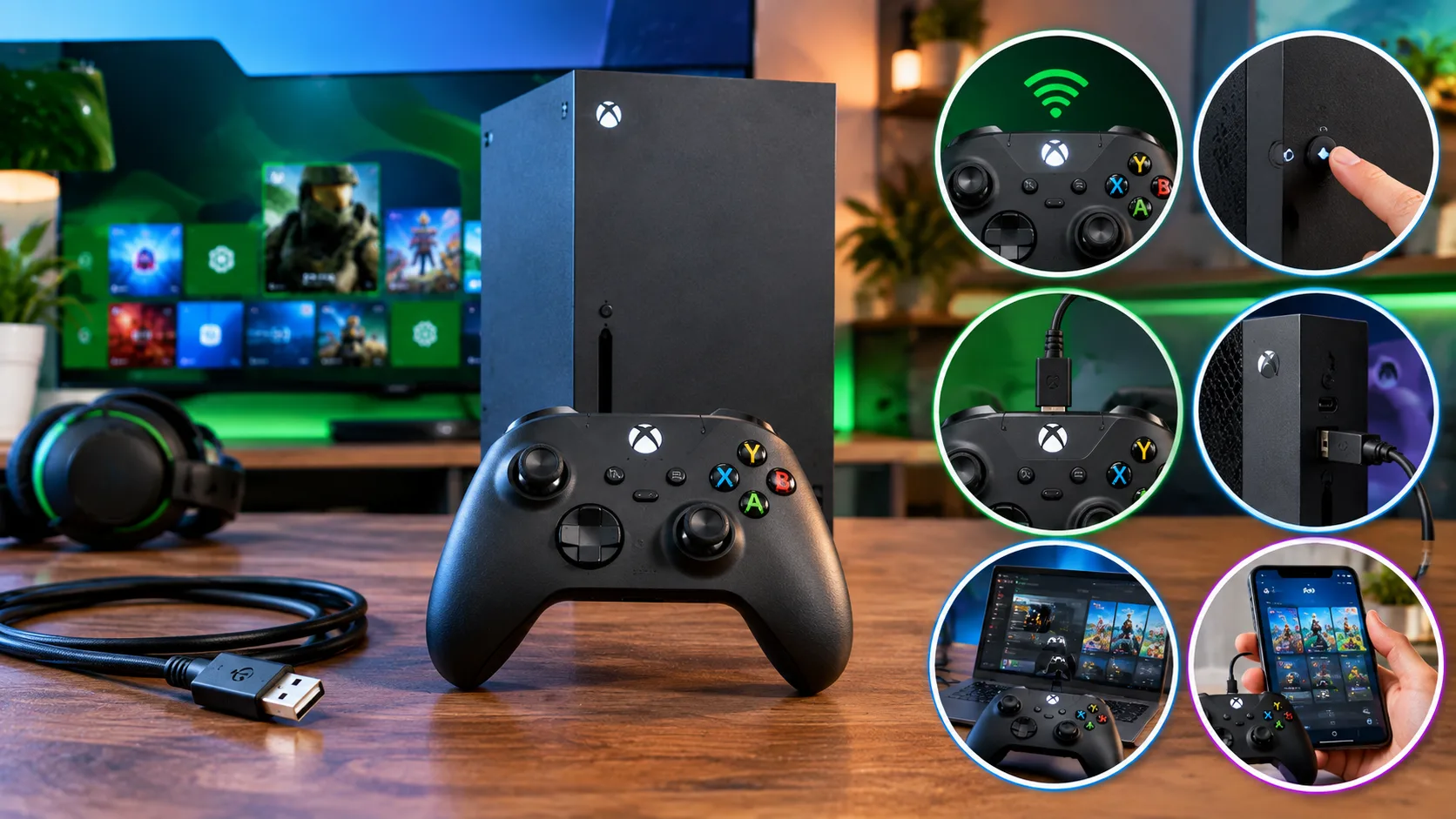
Connecting an Xbox controller to an Xbox Series X, Xbox Series S or Xbox One normally takes less than a minute. Wireless controllers can be paired using the Pair buttons on the console and controller, while a USB cable can establish an immediate wired connection.
The most important distinction is that an Xbox controller does not normally use Bluetooth to connect to an Xbox console.
Xbox consoles use Microsoft’s Xbox Wireless connection instead. Bluetooth is mainly used when pairing compatible Xbox controllers with Windows PCs, iPhones, iPads and Android devices.
This guide explains every main connection method, how to identify compatible controller models and what to do when a controller connects but does not work correctly in a game.
How Do You Connect an Xbox Controller to an Xbox?
For most Xbox Series X|S and Xbox One controllers, wireless pairing follows five basic steps:
- Turn on the Xbox console.
- Press the Xbox button on the controller to switch it on.
- Press and release the Pair button on the Xbox console.
- Press and hold the Pair button on the controller until the Xbox button begins flashing.
- Wait until the Xbox button becomes steadily illuminated.
A solid Xbox button normally indicates that the controller has successfully connected.
Where Is the Pair Button on an Xbox Controller?
On current Xbox Wireless Controllers, the small Pair button is located on the top edge of the controller, close to the USB port and between the bumper area.
Pressing and holding this button places the controller into pairing mode.
The Xbox button provides a useful visual indication of what is happening:
| Xbox Button Behaviour | What It Usually Means |
| Rapid flashing | The controller is searching for a console or another compatible device |
| Solid illuminated button | The controller is connected |
| Repeated or slower flashing | The controller may have lost its previous connection or be attempting to reconnect |
| Flashing combined with connection problems | Check batteries, wireless range and pairing |
Low batteries can also cause unreliable wireless behaviour. A slow flash should therefore not automatically be treated as a dedicated low-battery code; checking the battery indicator on Xbox or replacing the batteries is a better test.
Where Is the Pair Button on the Xbox Console?
The exact location varies slightly between console generations.
On Xbox Series X|S consoles, the Pair button is positioned on the front of the console close to the front USB area.
Xbox One S and Xbox One X also have a front-mounted Pair button.
The original Xbox One places the control differently, so owners of the first-generation console may need to check around the side/front area of the machine.
Press and release the console Pair button rather than holding it continuously. The console will enter pairing mode, after which the Pair button on the controller should be held until its Xbox button flashes.
Once pairing succeeds, the controller light should remain solid.
Can You Connect an Xbox Controller Through the Xbox Settings Menu?
Xbox provides a dedicated accessories area for checking controllers that the console recognises.
Open:
Settings > Devices & connections > Accessories
The connected Xbox controller should appear here.
This area is useful for checking whether Xbox can detect the controller, configuring supported controls, identifying the device and checking controller firmware.
However, the Accessories menu should not be confused with Bluetooth pairing settings on a phone or Windows PC. A new Xbox Wireless Controller is normally connected to the console using the physical Pair buttons or a USB cable first.
If the controller does not appear under Accessories, reconnect it by USB or repeat the wireless pairing procedure.
How Do You Connect an Xbox Controller Using a USB Cable?
USB is one of the easiest ways to connect a controller, particularly when wireless pairing is failing.
The required cable depends on the controller generation.
Newer Xbox Series X|S controllers use USB-C, while many Xbox One controllers use micro-USB.
To connect:
- Turn on the Xbox.
- Connect the appropriate USB cable to the console.
- Connect the other end to the Xbox controller.
- Press the Xbox button if the controller does not switch on automatically.
- Check that the controller responds on the Xbox dashboard.
A USB connection can also be useful when batteries are flat or when troubleshooting wireless interference.
Wireless Controller With a Cable vs Wired Controller
There is an important difference between connecting an Xbox Wireless Controller by USB and using a controller designed to be wired-only.
An Xbox Wireless Controller connected by USB still contains wireless hardware. The cable temporarily carries the controller connection and can also help when pairing or updating firmware.
A genuinely wired controller is different. Many third-party wired controllers depend entirely on their USB connection.
Wired-only controllers generally:
- Do not require wireless pairing.
- May not have a Pair button.
- Must stay physically connected during gameplay.
- Cannot automatically be treated as Bluetooth controllers.
If a wired controller is not detected, checking its USB cable, port and Xbox compatibility is more useful than attempting the wireless pairing process.
Do All Xbox Controllers Support Bluetooth?
No. This is particularly important when connecting older controllers to PCs, smartphones or tablets.
| Controller | Xbox Wireless | Bluetooth | USB Connection |
| Original Xbox One Wireless Controller | Yes | No | Yes, usually micro-USB |
| Later Xbox One Controller, including Model 1708 | Yes | Yes | Yes, micro-USB |
| Xbox Series X | S Wireless Controller | Yes | Yes |
| Xbox Elite Wireless Controller Series 1 | Yes | No | Yes |
| Xbox Elite Wireless Controller Series 2 | Yes | Yes | Yes, USB-C |
| Third-party Xbox controller | Varies | Varies | Model dependent |
One simple visual clue on Xbox One-era controllers is the area surrounding the Xbox button. Later Bluetooth-capable Xbox One controllers generally have the Xbox button area integrated into the same front face as the rest of the controller, while older models have a separate upper plastic section.
When there is uncertainty, checking the exact model number is more reliable.
Can You Connect an Xbox Controller to Xbox Through Bluetooth?
Not in the same way that a controller connects to an iPhone, Android device or ordinary Bluetooth-enabled PC.
Xbox consoles use Xbox Wireless for their native wireless controller connection.
Bluetooth support on compatible Xbox controllers is intended mainly for devices such as:
- Windows PCs
- Android phones and tablets
- iPhones
- iPads
Therefore, opening Bluetooth settings is unnecessary when connecting the controller directly to an Xbox Series X|S or Xbox One.
How Do You Connect an Xbox Controller to a Windows PC?
There are three main ways to connect an Xbox controller to a Windows PC: Bluetooth, the Xbox Wireless Adapter for Windows, or a USB cable.
Method 1: Connect Through Bluetooth
For a Bluetooth-compatible Xbox controller:
- Turn on the controller.
- Press and hold the Pair button until the Xbox button begins flashing.
- On Windows 11, open Settings > Bluetooth & devices.
- Select Add device, then choose Bluetooth.
- Select Xbox Wireless Controller when it appears.
- Wait for Windows to complete the connection.
On some Windows 10 PCs, the menu may instead appear under Settings > Devices > Bluetooth & other devices.
Older Xbox One controllers without Bluetooth support will not appear using this method.
Method 2: Connect Using the Xbox Wireless Adapter for Windows
The Xbox Wireless Adapter for Windows provides a separate wireless connection method and is particularly useful for compatible Xbox controllers that do not support Bluetooth.
Unlike Bluetooth, the adapter uses Xbox Wireless technology.
To connect:
- Plug the Xbox Wireless Adapter into a USB port on the Windows PC.
- Wait for Windows to recognise the adapter.
- Turn on the Xbox controller.
- Press the Pair button on the Xbox Wireless Adapter.
- Press and hold the Pair button on the controller until the Xbox button begins flashing.
- Wait for the Xbox button to stop flashing and remain solid.
Once the light remains solid, the controller should be connected to the PC.
The Xbox Wireless Adapter can be especially useful with older Xbox One controllers that lack Bluetooth support or for players who prefer Xbox Wireless instead of a standard Bluetooth connection.
Method 3: Connect to PC Using USB
A USB connection is the simplest option because it does not normally require wireless pairing.
To connect:
- Plug the appropriate USB cable into the Xbox controller.
- Connect the other end to the Windows PC.
- Wait for Windows to recognise the controller.
- Test the controller in a supported game or through the Xbox Accessories app.
Xbox Series X|S controllers normally use USB-C, while many older Xbox One controllers use micro-USB.
If the controller receives power but Windows does not recognise it, try another USB port or cable. Some USB cables are designed primarily for charging and may not reliably transfer data.
How Do You Connect an Xbox Controller to an iPhone or iPad?
Compatible Bluetooth-enabled Xbox controllers can connect directly to supported Apple devices.
To pair one:
- Open Settings > Bluetooth on the iPhone or iPad.
- Turn Bluetooth on.
- Switch on the Xbox controller.
- Hold its Pair button until the Xbox button flashes.
- Look for Xbox Wireless Controller under available Bluetooth devices.
- Tap the controller name.
- Wait until the Xbox button remains steadily illuminated.
Once connected, the controller can be used with compatible iOS or iPadOS games and supported cloud gaming services.
Players using their controller for streaming may also want to compare the site’s coverage of Xbox Game Pass cloud gaming options, particularly when deciding how they want to play away from a console.
How Do You Connect an Xbox Controller to Android?
The process is similar on an Android phone or tablet, although menu names can differ between manufacturers.
Open the device’s Bluetooth or Connected Devices settings, put the Xbox controller into pairing mode and select Xbox Wireless Controller when it appears.
Once connected, the Xbox button should remain solid.
This makes a compatible Xbox controller useful for supported Android games and Xbox cloud gaming without carrying an entire console.
If the controller pairs successfully but a particular mobile game does not respond, check whether that game actually supports external controllers. Bluetooth connectivity alone does not guarantee controller support in every mobile title.
What About PowerA, 8BitDo and Other Third-Party Xbox Controllers?
Third-party controllers should not automatically be treated like Microsoft’s official Xbox Wireless Controller.
Brands such as PowerA, 8BitDo and other licensed accessory manufacturers offer controllers with different connection systems.
Depending on the exact model, a controller may use:
- USB only
- Bluetooth
- A dedicated wireless receiver
- Another proprietary wireless connection
Some third-party controllers are completely wired and therefore have no Pair button.
Others may have their own pairing sequence or mode-selection switch.
The safest approach is to identify the exact controller model rather than assuming every product labelled “Xbox compatible” follows Microsoft’s standard Xbox Wireless pairing procedure.
Compatibility is particularly important when buying a controller for both Xbox and mobile use. Xbox compatibility does not automatically mean Bluetooth support.
What Should You Do If an Xbox Controller Won’t Connect?
Start with the simplest causes before assuming the controller is faulty.
Check the Batteries
Replace AA batteries or fully recharge the battery pack.
Weak batteries may allow the controller to switch on while still creating unstable wireless performance.
Move Closer to the Xbox
Try pairing the controller close to the console.
Distance, furniture and nearby wireless equipment can affect the signal.
Try USB
Connect the controller directly to the Xbox using a compatible USB cable.
If it works through USB but repeatedly fails wirelessly, the problem is more likely related to pairing, batteries, firmware or wireless communication.
Restart the Controller
Hold the Xbox button until the controller switches off. Turn it back on and attempt pairing again.
Restart the Xbox
Restarting the console can clear temporary accessory and wireless problems.
Re-pair the Controller
Press the Pair button on the Xbox and repeat the controller pairing sequence.
This is particularly useful after the controller has recently been connected to another device.
How Do You Update an Xbox Controller?
Controller firmware updates can resolve compatibility, connection and input problems.
On Xbox, open:
Settings > Devices & connections > Accessories
Choose the relevant controller and open its device options.
If a firmware update is available, follow the on-screen instructions.
Keeping the controller connected through USB during troubleshooting can provide a more stable connection while an update is installed.
What If the Xbox Controller Is Connected but Does Not Work In-Game?
A solid Xbox button does not always mean every game will immediately respond correctly.
If the controller works on the Xbox dashboard but stops responding after a game launches, the wireless connection itself may not be the main problem.
Try the following:
- Return to the Xbox dashboard and confirm that the controller still responds.
- Close and reopen the affected game.
- Check whether the correct Xbox profile is signed in.
- Disconnect unnecessary additional controllers or USB input devices.
- Check the game’s controller or input settings.
- Update the controller firmware.
- Restart the console.
- Test another game.
If the controller works correctly elsewhere, the problem may be specific to the game rather than the controller.
Why Does an Xbox Controller Have Input Lag?
Input lag can come from several different parts of the gaming setup.
First, connect the controller through USB. If the delay disappears, wireless interference or connection quality may be contributing.
Other steps include moving closer to the console, replacing weak batteries, updating controller firmware and disconnecting unnecessary wireless accessories.
If every controller feels delayed, also check the television or monitor. Enabling its gaming or low-latency mode can reduce display delay that may otherwise feel like controller lag.
Why Does an Xbox Controller Keep Disconnecting?
Random disconnections can be caused by:
- Weak batteries
- Wireless interference
- Excessive distance from the console
- Outdated firmware
- A damaged battery pack
- USB or hardware problems
- A controller switching between previously paired devices
Fresh batteries and a firmware update are good first steps.
Testing through USB is also valuable. If the controller remains completely stable over USB but repeatedly disconnects wirelessly, that helps narrow the problem to the wireless side of the connection.
What If the Controller Has Stick Drift?
A controller can be perfectly connected while still sending incorrect analogue-stick inputs.
If a character walks by itself, a camera slowly moves without input or menu selections continually shift, the problem is more likely stick drift than pairing.
The dedicated steps to fix Xbox controller stick drift cover cleaning, recalibration, firmware updates and more advanced repair options.
Can You Connect Multiple Xbox Controllers to One Console?
Yes. Additional compatible controllers can be paired individually using the same Pair-button process.
Pair the first controller and then repeat the sequence for each additional controller.
This is useful for local multiplayer and split-screen games.
For example, players setting up two gamepads for Fortnite split screen need both controllers recognised by the console and separate supported player accounts before local multiplayer can begin.
Should the Article Include a Video Demonstration?
Yes. A short visual demonstration would improve this particular how-to article.
The most useful video would show:
- The Pair button on Xbox Series X|S.
- The Pair button on the controller.
- The Xbox button flashing during pairing.
- The solid light once connected.
- A USB connection.
- The Settings > Devices & connections > Accessories screen.
- Bluetooth pairing on Windows or a phone.
A short original video is preferable because it can match the exact steps and screenshots in the article. It can also be embedded close to the first wireless-pairing section rather than buried at the bottom of the page.
FAQs About Connecting Xbox Controllers
How do I put an Xbox controller into pairing mode?
Turn on the controller, then press and hold the small Pair button on its top edge until the Xbox button begins flashing. The flashing light indicates that the controller is searching for a compatible connection.
Does Xbox Series X use Bluetooth for its controller?
The Xbox Series X|S console connection uses Xbox Wireless rather than ordinary Bluetooth. Compatible Xbox controllers can use Bluetooth with supported PCs, phones and tablets.
Why is my Xbox controller flashing but not connecting?
The controller may still be searching for its paired console, may need to be paired again or may have weak batteries. Move closer to the console, replace or recharge the batteries and repeat the Pair-button process.
How do I know when my Xbox controller is connected?
The Xbox button normally stops flashing and remains steadily illuminated once the controller establishes a connection.
Can an old Xbox One controller connect through Bluetooth?
Not every Xbox One controller supports Bluetooth. Early Xbox One controllers require Xbox Wireless or USB. Later revisions added Bluetooth support.
Can I use an Xbox Wireless Adapter with an older Xbox One controller?
Yes. Compatible older Xbox One controllers without Bluetooth can connect wirelessly to Windows using the Xbox Wireless Adapter.
Can I connect my Xbox controller to my phone?
Compatible Bluetooth-enabled Xbox controllers can connect to supported iPhone, iPad and Android devices through their Bluetooth settings.
Why does my controller work on the Xbox menu but not in a game?
The issue may involve the game, player profile or input settings rather than the wireless connection. Close and restart the game, check the signed-in profile and test the controller in another game.
Do wired Xbox controllers need pairing?
A genuinely wired-only controller normally does not. It connects through USB and therefore may not have a Pair button.
Can third-party Xbox controllers connect the same way?
Not always. Connection methods vary between third-party models. Some are USB-only, while others use Bluetooth or their own wireless receiver. Check the connection method for the exact controller model.