Last updated: 15 September 2026
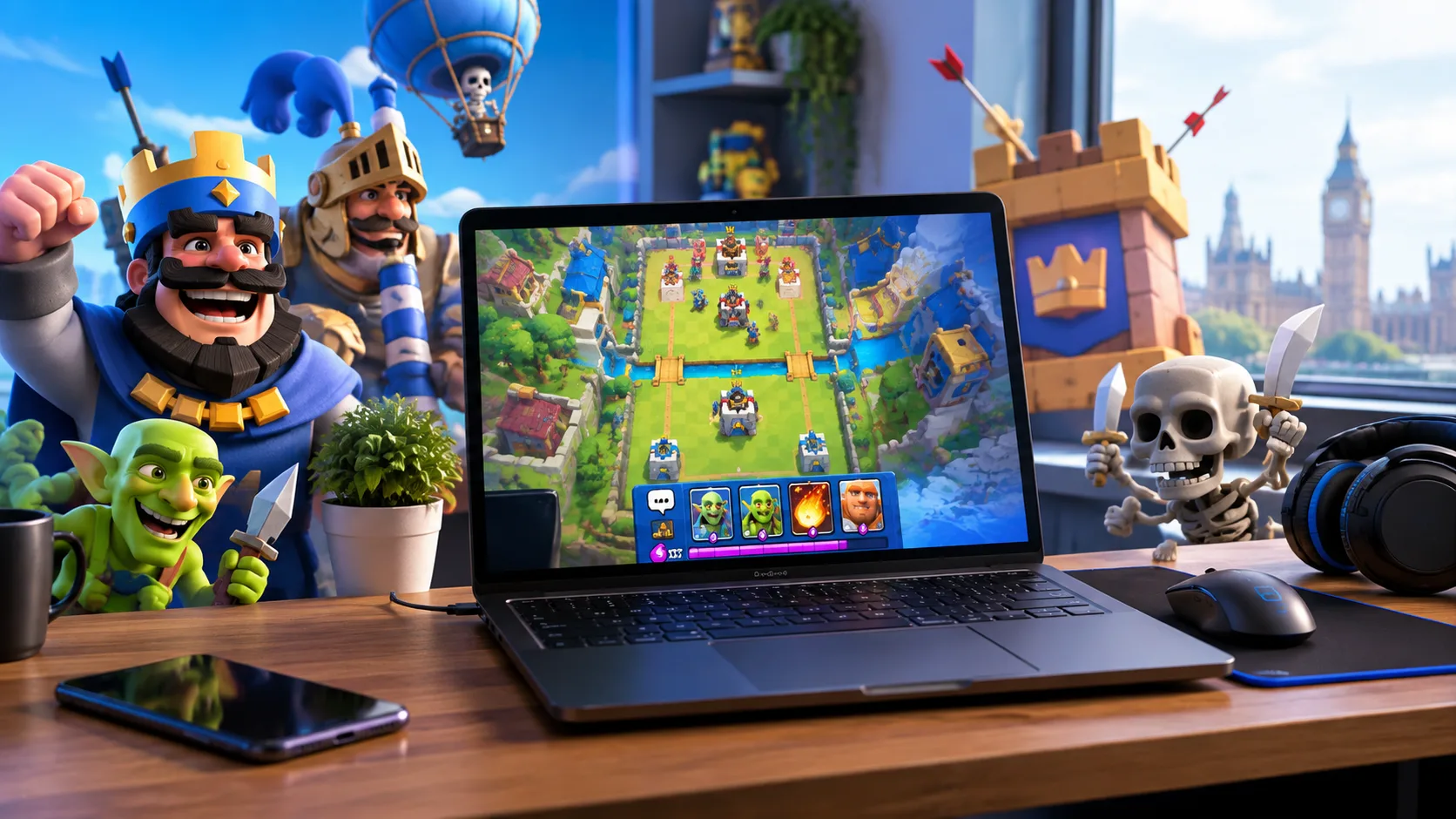
Clash Royale can be played on a Windows PC through Google Play Games on PC, giving players an official way to enjoy Supercell’s real-time strategy game on a larger screen without relying on a mobile phone.
The setup is relatively straightforward: install Google Play Games, sign in with a Google account, find Clash Royale, install it and connect the existing Supercell ID if progress needs to be carried across from mobile.
However, installation is only part of the process. The PC must meet Google Play Games requirements, hardware virtualisation may need to be enabled, availability can vary by region, and players moving from touchscreen controls may need time to become comfortable with mouse placement.
There are also important considerations around third-party Android emulators, account security and troubleshooting problems such as black screens, crashes, lag and missing Clash Royale progress.
What Do You Need Before Installing Clash Royale on PC?
Checking compatibility first can prevent downloading Google Play Games only to discover that the computer cannot run it correctly.
The main requirements include:
| PC Requirement | Minimum Requirement |
| Operating system | Windows 10 v2004 or newer |
| Storage | SSD with at least 10 GB available |
| RAM | At least 8 GB |
| Graphics | Intel UHD Graphics 630 or comparable |
| Processor | At least 4 physical CPU cores |
| User account | Windows administrator access |
| Virtualisation | Hardware virtualisation enabled |
A more powerful processor and dedicated graphics card may improve overall performance, but Clash Royale itself is not a particularly demanding PC game.
The more important issue is whether the computer can properly run Google Play Games.
Why Does Hardware Virtualisation Matter?
Google Play Games uses virtualisation technology to run Android games within Windows.
Depending on the PC configuration, installation may require Windows Hypervisor Platform or hardware virtualisation to be enabled.
If the installer reports a virtualisation error, the problem does not necessarily mean the PC is incapable of running Clash Royale. Virtualisation may simply be disabled.
The setting is normally controlled through the computer’s BIOS or UEFI configuration.
Users should avoid changing unrelated BIOS settings while trying to enable virtualisation.
How Do You Install Clash Royale on PC?
Once the computer has passed the basic requirements check, installing Clash Royale is relatively simple.
Step 1: Install Google Play Games on PC
Download the Google Play Games Windows application and run the installer.
The installation process may perform its own compatibility checks before continuing.
If the PC requires additional virtualisation features, Windows may display instructions during this stage.
A restart may also be required.
Screenshot recommendation: Add a real screenshot of the Google Play Games installer here instead of a generic gaming illustration.
Step 2: Sign In to Google Play Games
Open Google Play Games and sign in using a Google account.
Where possible, players may find it easier to use the same Google account already associated with their Android gaming activity, although Clash Royale progression itself should primarily be protected through Supercell ID.
Step 3: Search for Clash Royale
Use the Google Play Games search function and enter:
Clash Royale
Open the correct game listing before installing it.
Screenshot recommendation: Add a screenshot showing Clash Royale appearing inside the Google Play Games search results.
Step 4: Install Clash Royale
Select the install option and allow the game files to download.
Download time will depend on internet speed and any updates available at the time.
It is sensible to maintain more free SSD storage than the absolute minimum because Google Play Games, Clash Royale and future updates all require space.
Step 5: Launch the Game
Once installation finishes, open Clash Royale through Google Play Games.
The first launch can take slightly longer while the application finishes configuring the game.
Step 6: Connect the Existing Supercell ID
Players who already use Clash Royale on Android or iPhone should connect the same Supercell ID rather than creating an entirely separate account.
This allows existing cards, progression and account information to remain available when switching devices.
Screenshot recommendation: Add an actual Clash Royale Supercell ID login screen here.
Can You Use the Same Clash Royale Account on PC and Mobile?
Yes. An existing Clash Royale account can be accessed across supported devices when it is connected to Supercell ID.
This means a player can use a phone while away from home and later continue using a Windows PC.
The important part is signing into the correct Supercell ID.
If the game opens with a new account instead of the expected progress, avoid making unnecessary changes immediately.
First check:
- Whether the correct Supercell ID was entered
- Whether a different email address was accidentally used
- Whether the original mobile account is actually connected to Supercell ID
- Whether the verification code was sent to the expected email account
Creating multiple IDs unnecessarily can make account recovery more confusing.
Is Google Play Games Available in Every Country?
No. Google Play Games on PC has broad international availability, but support can still vary by country, Google account and system compatibility.
That means two players with similar computers may not necessarily see exactly the same availability.
If Google Play Games or Clash Royale is unavailable, check the region associated with the Google Play account before assuming there is a problem with Windows.
Changing account regions solely to bypass availability restrictions is generally not a good troubleshooting strategy because it can affect other Google Play services and purchases.
Regional availability can also change over time, which is why software-based PC gaming articles should be checked and refreshed regularly.
Should You Use an Android Emulator for Clash Royale?
Third-party Android emulators have historically been used to run mobile games on Windows and macOS.
Examples commonly discussed online include BlueStacks, LDPlayer and MEmu.
However, there is now much less reason to use an emulator for Clash Royale on Windows because an official Google Play Games version exists.
Players should also be cautious about treating emulator use as automatically risk-free.
Why Is Google Play Games the Better Choice?
Google Play Games provides:
- An official Windows environment for the game
- Easier installation
- Better integration with Google services
- Fewer questionable APK downloads
- Reduced exposure to modified game files
- A simpler route for updates
- Less uncertainty around unofficial software
Third-party emulators may also introduce their own performance, compatibility and input problems.
Can Using an Emulator Get a Clash Royale Account Banned?
Players should not assume that using a third-party emulator is guaranteed to be safe.
Account risk becomes particularly serious when an emulator is combined with modifications, automation, scripts, bots, macros or altered APK files.
For players who want the lowest-risk setup, the sensible approach is to use Google Play Games on Windows and avoid unnecessary third-party software.
What Should You Avoid When Playing Clash Royale on PC?
A few basic precautions can significantly reduce security and account problems.
| Recommended | Avoid |
| Use Google Play Games | Unknown Clash Royale PC installers |
| Use the original game | Modded APK files |
| Protect Supercell ID | Sharing login codes |
| Keep software updated | Outdated unofficial builds |
| Use normal controls | Automated scripts |
| Use manual gameplay | Bots and macros |
| Download from trusted platforms | “Unlimited gems” downloads |
| Protect the linked email account | Giving login details to strangers |
A website promising unlimited Gems, unlocked cards or a modified PC version of Clash Royale should be treated with particular caution.
Downloading an unofficial executable simply because it includes “Clash Royale PC” in its filename can expose the computer and gaming account to unnecessary risk.
Why Is Clash Royale Not Working on PC?
Getting Clash Royale installed does not guarantee that every computer will run it without problems.
Common issues include:
| Problem | Possible Cause | What to Check |
| Google Play Games will not install | PC below requirements | Windows version, SSD, RAM, CPU and graphics |
| Virtualisation error | Virtualisation disabled | BIOS/UEFI and Windows virtualisation settings |
| Clash Royale black screen | Graphics or application issue | Updates, GPU driver and restart |
| Game crashes | Compatibility or resource problem | Drivers, background applications and installation |
| Input feels delayed | Performance or connection issue | Network and system load |
| Clash Royale is missing | Region or compatibility | Google Play region and PC eligibility |
| Progress is missing | Wrong account | Supercell ID |
| Login fails | Account or connection problem | Account details and internet connection |
| Game is lagging | Network or hardware load | Connection, RAM, CPU and background programs |
Troubleshooting should start with the simplest fixes rather than immediately reinstalling Windows or changing advanced system settings.
How Do You Fix a Clash Royale Black Screen on PC?
A black screen can have several causes, including an outdated graphics driver, a temporary Google Play Games problem or a corrupted game session.
Try the following sequence:
- Close Clash Royale completely.
- Exit Google Play Games rather than simply minimising it.
- Open Google Play Games again.
- Check whether an update is available.
- Restart Windows.
- Update the graphics driver.
- Close unnecessary background software.
- Launch Clash Royale again.
- Reinstall Google Play Games if the issue continues.
Avoid downloading individual DLL files or unofficial “black screen patches” from random websites.
These downloads can create more serious problems than the original fault.
What Should You Do If Clash Royale Keeps Crashing?
First check whether the computer meets the minimum Google Play Games requirements.
Next, close applications that may be heavily using:
- RAM
- CPU
- Graphics resources
- Storage
- Internet bandwidth
Restart the game afterwards.
If crashes continue, update Google Play Games, Windows and the computer’s graphics driver.
A clean reinstall may help when an update or game file has become corrupted.
Why Is Clash Royale Lagging on PC?
Not every form of lag is caused by the computer.
Clash Royale is an online multiplayer game, meaning the network connection plays an important role.
Potential causes include:
- Weak Wi-Fi
- High network latency
- Background downloads
- Video streaming on the same connection
- Windows updates
- Insufficient RAM
- Heavy background applications
- Graphics driver problems
- PC hardware close to the minimum requirements
Players should distinguish between network lag and low system performance.
If animations remain smooth but card placement reacts late, network latency may be responsible.
If the entire game stutters or freezes, the PC or graphics configuration is more likely to be involved.
How Do You Fix Mouse Input Delay?
Mouse control can initially feel unusual even when there is no actual technical delay.
Someone who has played Clash Royale on a touchscreen for several years has developed muscle memory around tapping and dragging cards with a finger.
Moving a mouse pointer is a different action.
Before assuming there is input lag, test card placement outside important competitive situations.
If there is a real delay:
- Close unnecessary applications
- Check CPU and RAM usage
- Test the internet connection
- Restart Google Play Games
- Check for software updates
- Update mouse and graphics drivers if necessary
Players should also avoid unnecessary third-party input-remapping utilities if standard controls are working.
What If Clash Royale PC Login or Supercell ID Sync Is Not Working?
A login problem can easily be mistaken for lost game progress.
If the expected Clash Royale account does not appear, first verify which Supercell ID was originally connected to the mobile account.
Check the email inbox associated with that ID.
If several email addresses are used for gaming accounts, it is easy to enter the wrong one.
Players should never share Supercell ID verification codes with another person, even if that person claims they need the code to troubleshoot the account.
How Can You Practise Clash Royale Mouse Controls?
This is one area many PC installation guides overlook.
Playing Clash Royale with a mouse does not automatically make someone more accurate.
In fact, an experienced touchscreen player may initially play worse on PC.
Specific drills can make the adjustment easier.
1. Practise Skeleton Placement in the Centre
Use cheap-cycle cards such as Skeletons to practise clicking precise tiles.
The goal is not winning the interaction. It is becoming comfortable moving the pointer quickly to an exact battlefield location.
2. Practise a Knight Pull
Try using Knight or another defensive unit to pull an attacking troop towards the required position.
This helps develop precision because one misplaced tile can change the interaction.
3. Practise Fireball Placement
Target support troops with Fireball while trying to hit the maximum number of valuable targets.
This is useful for learning how quickly the cursor can move from the card area to the battlefield.
4. Practise Log Timing Against Swarms
Use The Log against swarm troops and focus on timing rather than simply reacting as quickly as possible.
PC controls may initially feel slower to experienced mobile users because the hand movement is different
5. Practise Defensive Building Placement
Building placement is an excellent mouse-control drill.
Try positioning defensive buildings correctly against common win conditions and pay attention to individual tiles.
Small placement mistakes can change troop pathing and completely alter a defence.
These exercises help turn theoretical mouse precision into practical Clash Royale control.
Is Clash Royale Better on PC or Mobile?
PC has advantages, but the comparison is not completely one-sided.
Mobile remains the better platform for certain types of players.
| Feature | PC | Mobile |
| Screen size | Larger | Smaller |
| Controls | Mouse-based | Touchscreen |
| Portability | Limited | Excellent |
| Battery concerns | No phone battery drain | Gaming consumes battery |
| Multitasking | Strong | More limited |
| Initial control familiarity | Requires adjustment | Familiar to mobile players |
| Setup | Requires compatible PC | Simple app installation |
| Virtualisation | May be required | Not required |
| Driver issues | Possible | Not normally relevant |
| Gaming anywhere | Limited | Excellent |
| Long sessions | Comfortable at a desk | Can cause battery/heat issues |
What Are the Advantages of Playing Clash Royale on PC?
Larger Screen
A desktop or laptop display makes the battlefield easier to view without fingers covering part of the screen.
No Phone Battery Drain
Long gaming sessions can consume significant phone battery and generate heat.
Playing at a PC avoids that problem.
Easier Multitasking
Players can keep Discord, streaming software, a browser or other applications open alongside Clash Royale.
Comfortable Long Sessions
A monitor, desk and mouse can be more comfortable than holding a smartphone for extended periods.
Streaming and Recording
PCs generally provide a more convenient environment for players creating Clash Royale videos or live streams.
What Are the Disadvantages of Playing Clash Royale on PC?
Mouse Controls Take Practice
Touchscreen muscle memory does not immediately transfer to a mouse.
Some experienced mobile players may initially place cards less accurately on PC.
PC Compatibility Problems Can Occur
Windows updates, graphics drivers and virtualisation introduce technical factors that mobile users do not normally have to consider.
Regional Availability Can Differ
Google Play Games availability can depend on the player’s region or account.
PC Is Not Portable
A phone can be used almost anywhere.
A desktop gaming setup obviously cannot provide the same flexibility.
Troubleshooting Can Be More Complex
Mobile players typically install Clash Royale directly from an app store.
PC players have another software layer — Google Play Games — that can also experience compatibility issues.
Does Playing Clash Royale on PC Give You an Advantage?
Not automatically.
A larger screen and mouse may feel more comfortable, but Clash Royale still depends on:
- Elixir management
- Card-cycle tracking
- Placement
- Match-up knowledge
- Opponent prediction
- Spell timing
- Defensive positioning
- Decision-making
A player who is highly experienced with touchscreen controls may actually react faster on mobile.
PC should therefore be viewed as an alternative way to play rather than an automatic competitive advantage.
How Can You Improve Clash Royale PC Performance?
A few simple steps can improve stability.
Keep Enough SSD Space Available
Do not operate at the absolute storage limit.
Windows, Google Play Games and Clash Royale all need room for updates and temporary files.
Close Heavy Background Programs
Video editing, dozens of browser tabs or another game can consume unnecessary resources.
Keep Graphics Drivers Updated
Graphics-related problems can cause crashes, black screens or poor performance.
Use a Stable Internet Connection
A powerful PC cannot compensate for an unstable network.
Restart the PC Periodically
A restart can resolve temporary driver, memory or update problems.
Avoid Unnecessary Third-Party Tools
Extra overlays, macros, emulators and input utilities can create compatibility problems that would otherwise not exist.
Can You Play Clash Royale on a Chromebook?
This depends on the Chromebook.
Google Play Games on PC is designed for Windows, so the Windows version cannot simply be installed on ChromeOS.
However, some Chromebooks support Android applications through the Google Play Store.
Whether Clash Royale is available therefore depends on factors including:
- Chromebook model
- ChromeOS version
- Google Play support
- Administrator restrictions
- Game compatibility
School- or workplace-managed Chromebooks may also block application installation.
Can You Play Clash Royale on a Mac?
The official Google Play Games PC route discussed in this article is designed for Windows rather than macOS.
Older Clash Royale tutorials frequently recommend Android emulators for Mac users, but those instructions should not be treated as equivalent to an officially supported Windows installation.
Mac users should be particularly cautious about downloading unknown “Clash Royale for Mac” packages.
How Much Storage Does Clash Royale Need on PC?
There are two different storage considerations.
The first is the size of Clash Royale itself.
The second is the storage requirement for the Google Play Games PC environment.
Google Play Games requires at least 10 GB of available SSD space as part of its PC requirements.
That does not mean Clash Royale itself always occupies exactly 10 GB.
The game’s size may also change as updates are released.
For this reason, players should leave additional free space rather than trying to operate at the minimum limit.
Can You Use a Controller for Clash Royale on PC?
Players should not assume Clash Royale has the same controller support as a conventional PC or console game.
The game was originally designed around touchscreen placement, and its PC experience focuses heavily on pointer-based controls.
Even where Google Play Games provides broader controller capabilities for compatible titles, individual game support can vary.
For Clash Royale, mouse controls remain the more natural PC input method unless native controller support is specifically available in the installed version.
Third-party controller macros or automation should be avoided.
Are Macros Safe to Use With Clash Royale on PC?
Automated gameplay should be avoided.
There is an important difference between manually pressing a key and using software that performs gameplay actions automatically.
Bots, scripts or macros that automate card placement, repeated actions or gameplay can create account-policy risks.
The safest approach is simple:
Every gameplay action should be performed manually by the player.
What Has Changed Since Older Clash Royale PC Guides?
Older tutorials often focused almost entirely on Android emulators because there was no convenient official Windows option.
That has changed.
The modern PC setup revolves around Google Play Games, making sections recommending BlueStacks, LDPlayer or MEmu as the default method much less useful.
Older articles may also contain outdated information about:
- Google Play Games being a beta product
- Hardware requirements
- Region availability
- PC controls
- Emulator recommendations
- Windows compatibility
- Installation screens
- Google Play Games interface design
This is why Clash Royale PC instructions should carry a visible last updated or last checked date.
Screenshots should also be refreshed whenever Google’s installer or interface changes significantly.
What Screenshots Should Be Added to This Article?
Real screenshots would make the installation instructions much more useful than decorative gaming images.
The most valuable screenshots would show:
- Google Play Games download/install screen
- PC compatibility or requirements screen
- Virtualisation prompt if displayed
- Google Play Games sign-in screen
- Clash Royale search result
- Clash Royale installation button
- Game launch screen
- Supercell ID login screen
Screenshots should be updated when the user interface changes so readers are not following instructions based on obsolete menus.
Frequently Asked Questions
Can You Play Clash Royale on PC?
Yes. Clash Royale can be played on compatible Windows PCs using Google Play Games.
Is Clash Royale Free on PC?
Clash Royale remains free to download and play, although optional in-game purchases are available.
Does Clash Royale Work on Windows 11?
A compatible Windows 11 computer should be capable of running Google Play Games provided it also meets the remaining hardware and virtualisation requirements.
Does Clash Royale Work on Windows 10?
Yes, but the computer needs a supported Windows 10 version and must meet the other Google Play Games requirements.
Is Google Play Games Available in My Country?
Availability covers many regions but is not universal. It can also depend on Google account settings and device eligibility.
If Google Play Games is unavailable, regional compatibility should be checked before attempting complex troubleshooting.
Can You Play Clash Royale on Chromebook?
Some Chromebooks support Android applications, but Google Play Games on PC is a Windows product. Clash Royale availability on ChromeOS therefore depends on the particular Chromebook and Google Play compatibility.
How Much Storage Does Clash Royale Need on PC?
Google Play Games requires at least 10 GB of free SSD storage as part of its PC requirements. Clash Royale’s actual installed size can change with updates, so additional free space is recommended.